
How to Create a Repeater Content Field
Guide on how to create a repeater field in Zesty.io
Repeater fields let you define a reusable group of fields for structured, repeating content — all stored directly on your content item. Common use cases include testimonials, client logos, image sliders, and any other content that follows a repeated pattern.
How to add a repeater field in the schema app
To get started, go to the schema app for one of your content items. Add a new field and scroll to the “Advanced” section.
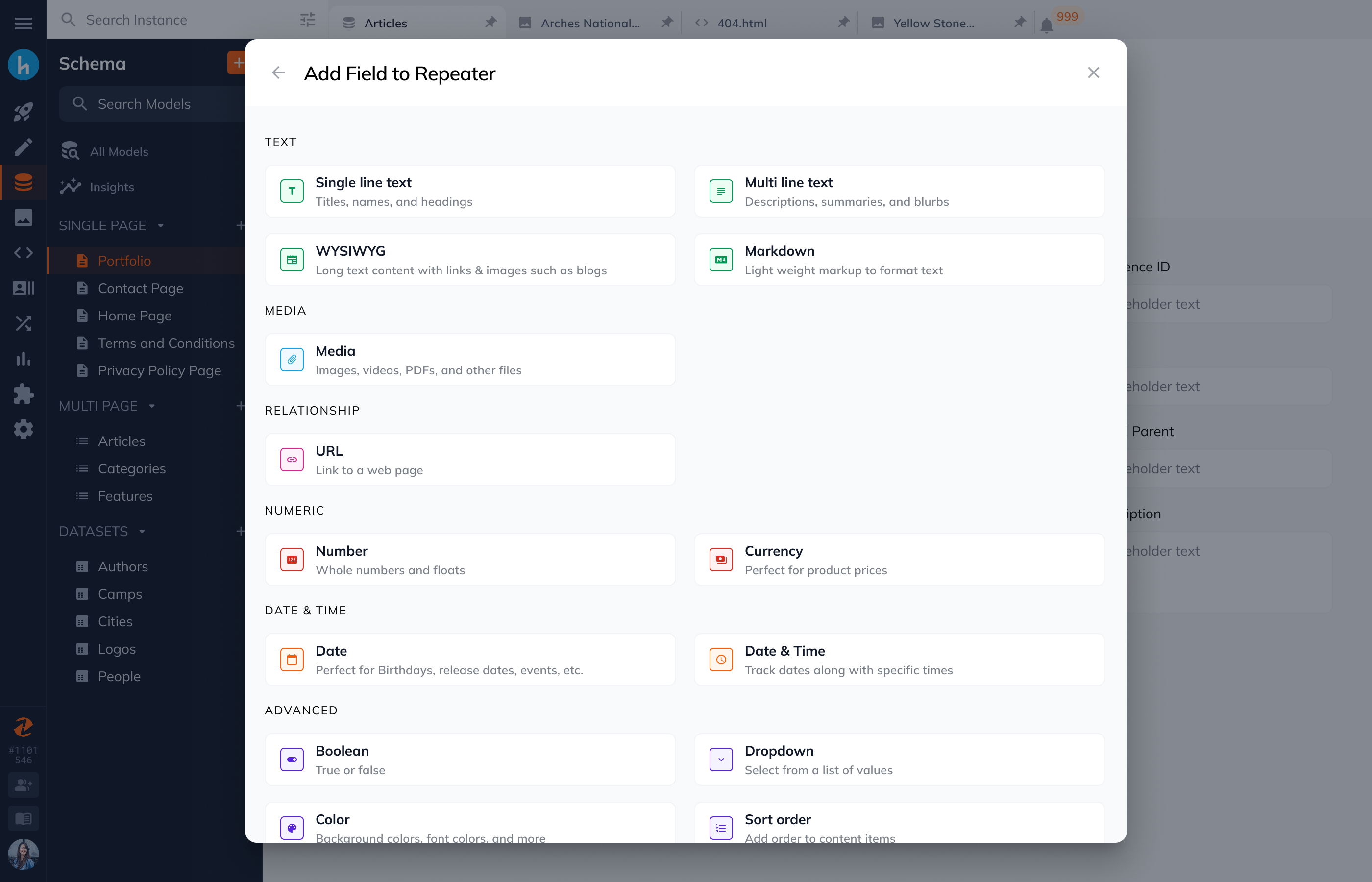
After setting the details of your repeater field, you will then need to add fields to it.
Please note that the repeater field will only only show up in the content view when there is at least 1 field added to it. The repeater is similar to other content items, with the addition of how many fields have been added.
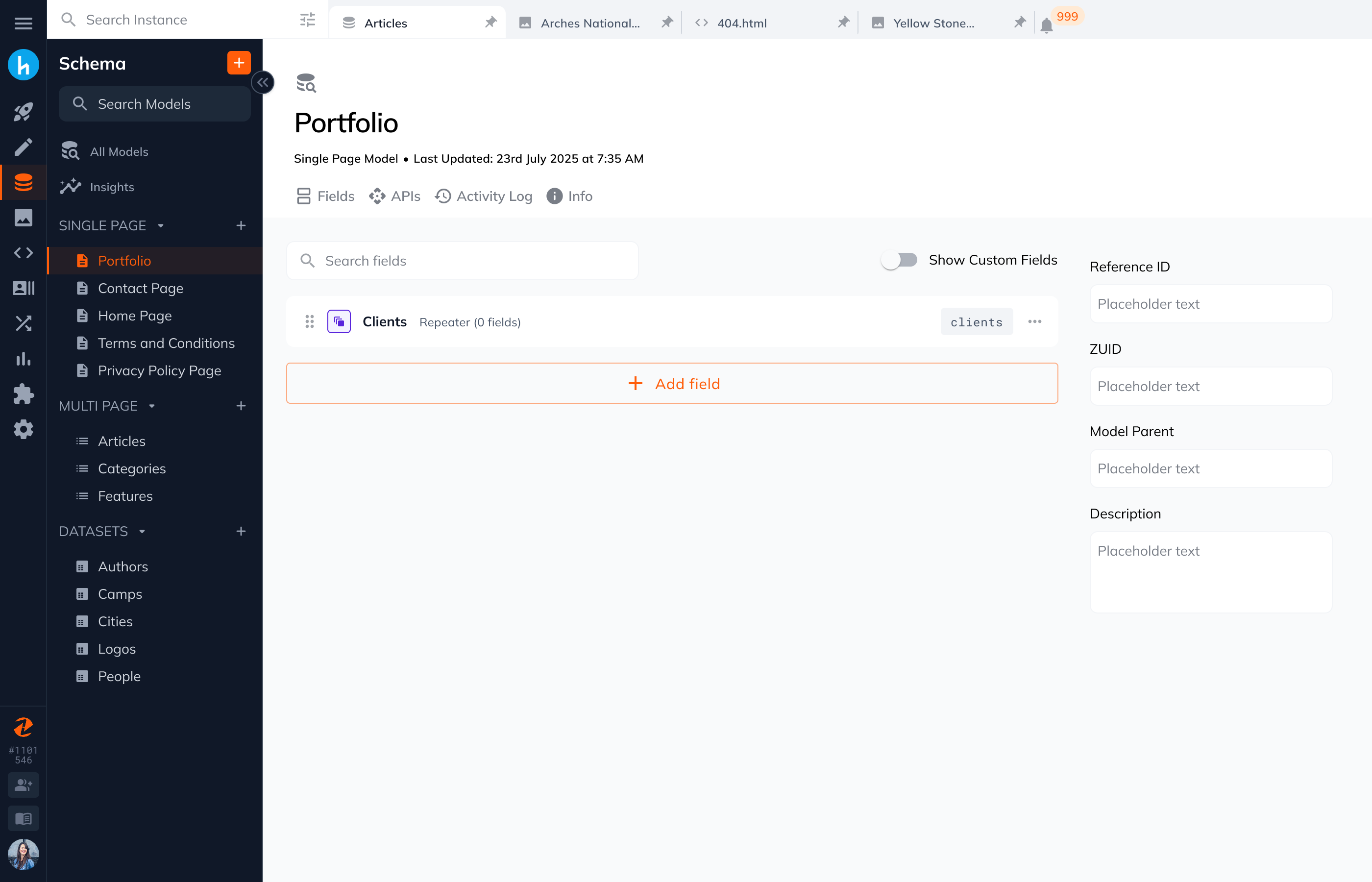
How to add content fields to a repeater field
You have two ways to add a repeater from the interface above: 1. Click on the field type, or 2. In the “more” menu, choose “Edit Field”. You will open the field to a new tab, where you can add content-fields to your repeater.
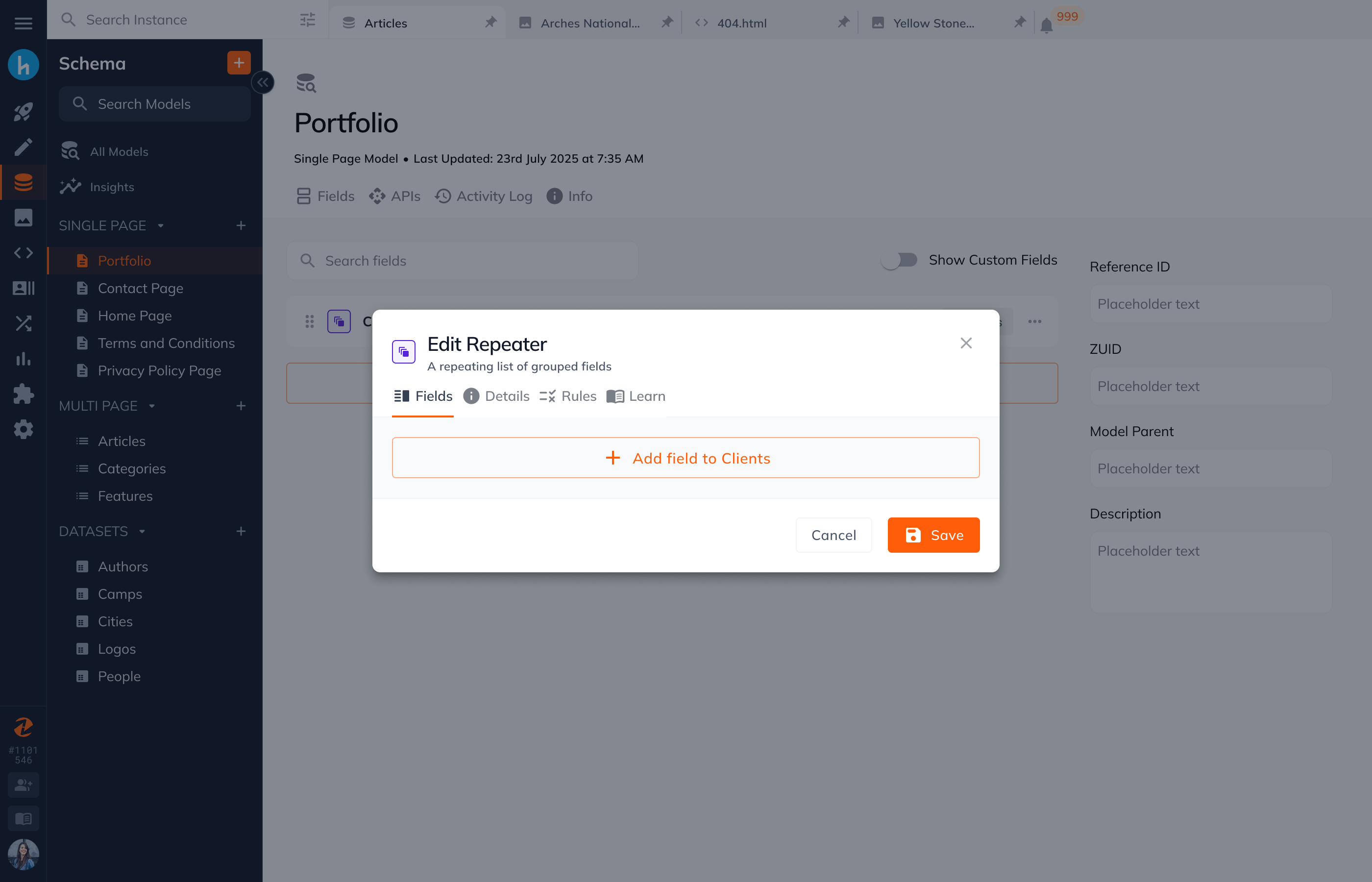
Repeater field groups are built using our compatible content field types, giving you flexibility to compose the exact data structure you need. Because repeater content is stored as JSON, relational field types are not supported within a repeater group.
Supported Fields include:
- Single Line Text
- Multi Line Text
- WYSIWYG
- Markdown
- Media
- External URL
- Number
- Currency
- Date
- Date & Time
- Boolean
- Dropdown
- Color
- Sort order
- UUID
How to manage a repeater field in the content app
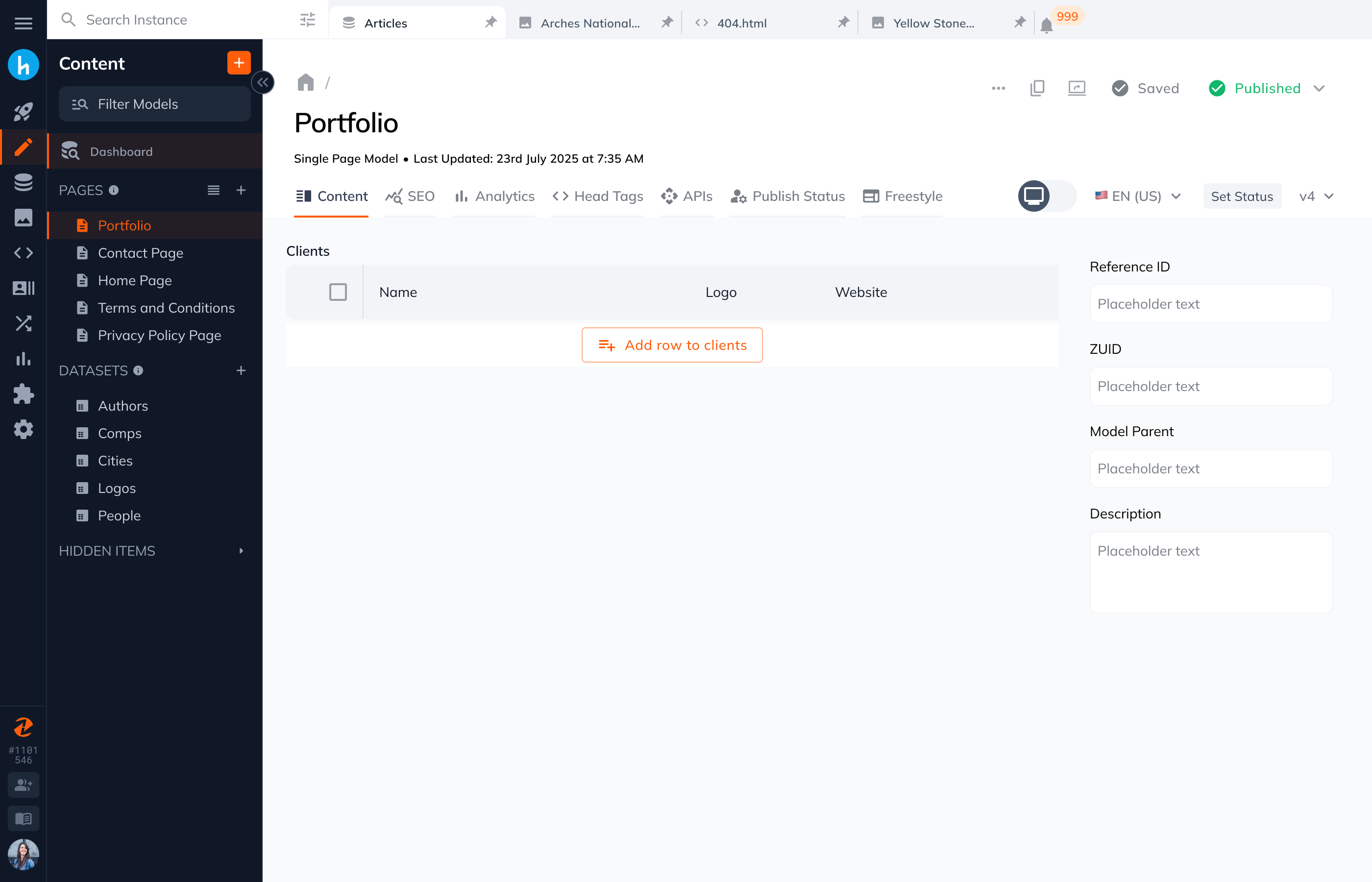
The repeater content field displays a table view on the content app. To add a new item, click on the “Add row to {repeater_name}” button.
Note: If you do not add fields to your repeater, the table will not show up when making edits on the content app.
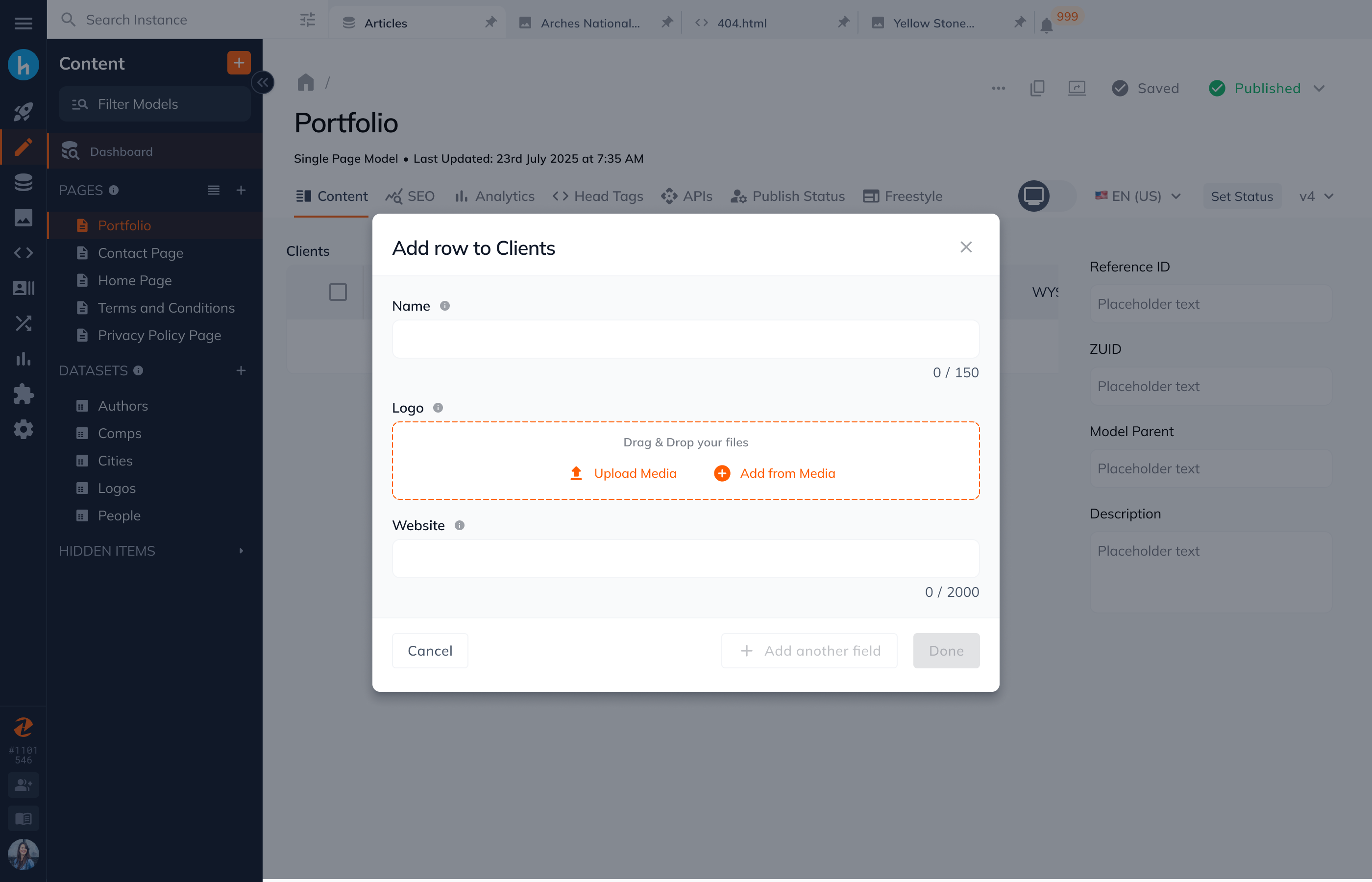
A modal will open with all the fields created on your repeater field. Once you fill out your desired content fields, you can add another field or save your item.
How to delete a row from the repeater field
If you want to delete an item from your repeater field, there are 2 ways:
- Use the checkbox on the table view to expose the delete button, or
- Click on a field to edit it. Both will expose a delete button.
How to add your repeater content in code
To render the repeater JSON data as a string, you can use the parsley reference. In our example above for the clients repeater, we would use: {{ this.clients }}
Learn more about Parsley JSON references from our Mindshare Article, Parsley December 2022 ReleaseParsley December 2022 Release
Iterating through JSON with Parsley
Because the direct Parsley call outputs JSON, you can use Parsley JSON iteration capabilities to further drill into the stored content as follows:
{{each api.json.get({ this.clients }) as obj}}

<h1>{{obj.title}}</h1>

{{end-each}}
Updated 3 months ago