
How to Use the Integration Field
Guide on how to create an integration field in Zesty.io
Integration fields let you select and store data from external data sources. Retrieved from a remote JSON API and stored directly on a content item. Enabling seamless third-party integrations without custom development.
Adding an Integration Field in the Schema App
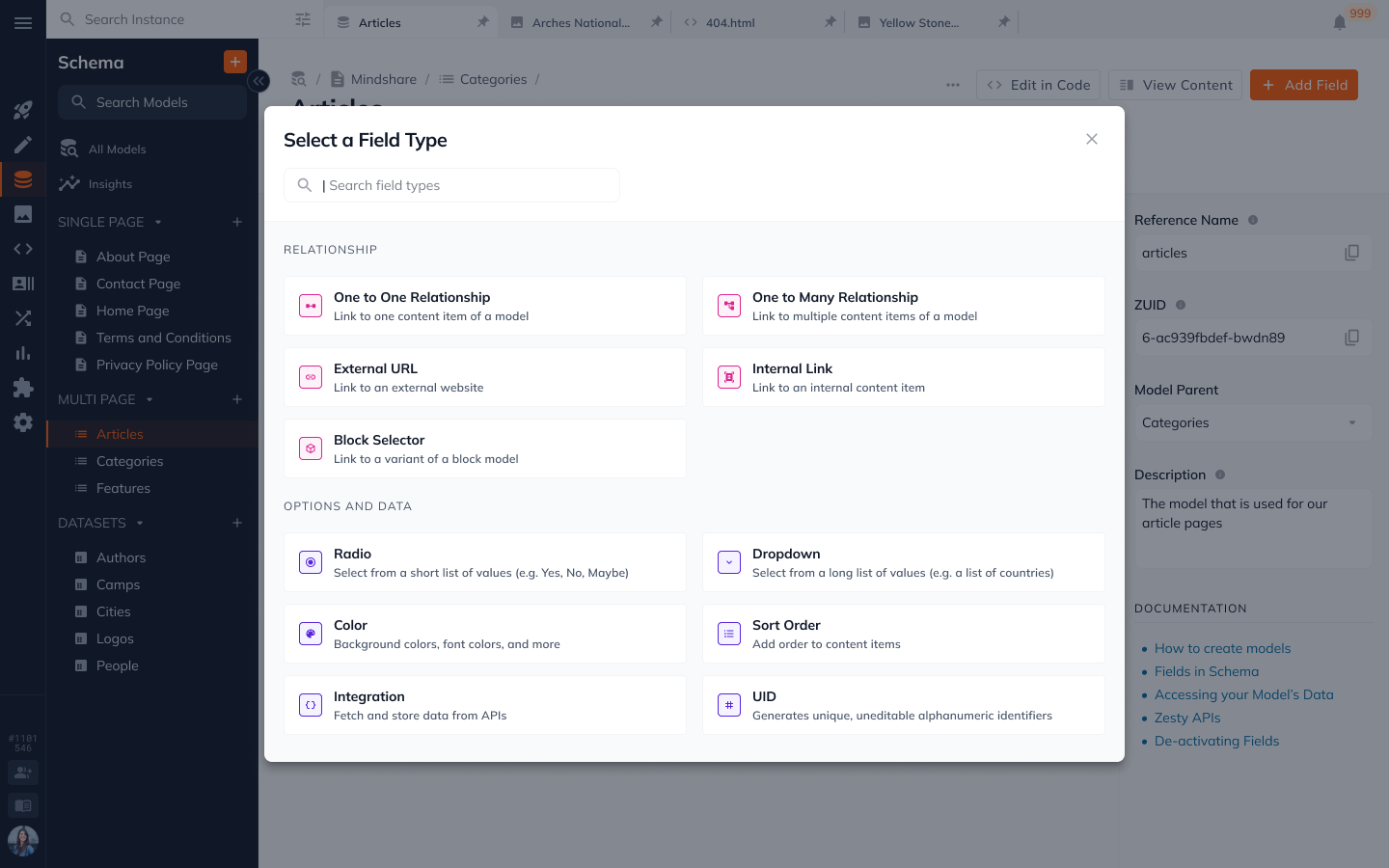
To get started, go to the schema app for one of your content items. Add a new field and scroll to the “Advanced” section. You can also do search "integration" in the field type input box.
Give your integration field a name and unique field key. The field key is used to reference the JSON object in your templates and API responses. Use the “Connect to API” button to connect to an external data source.
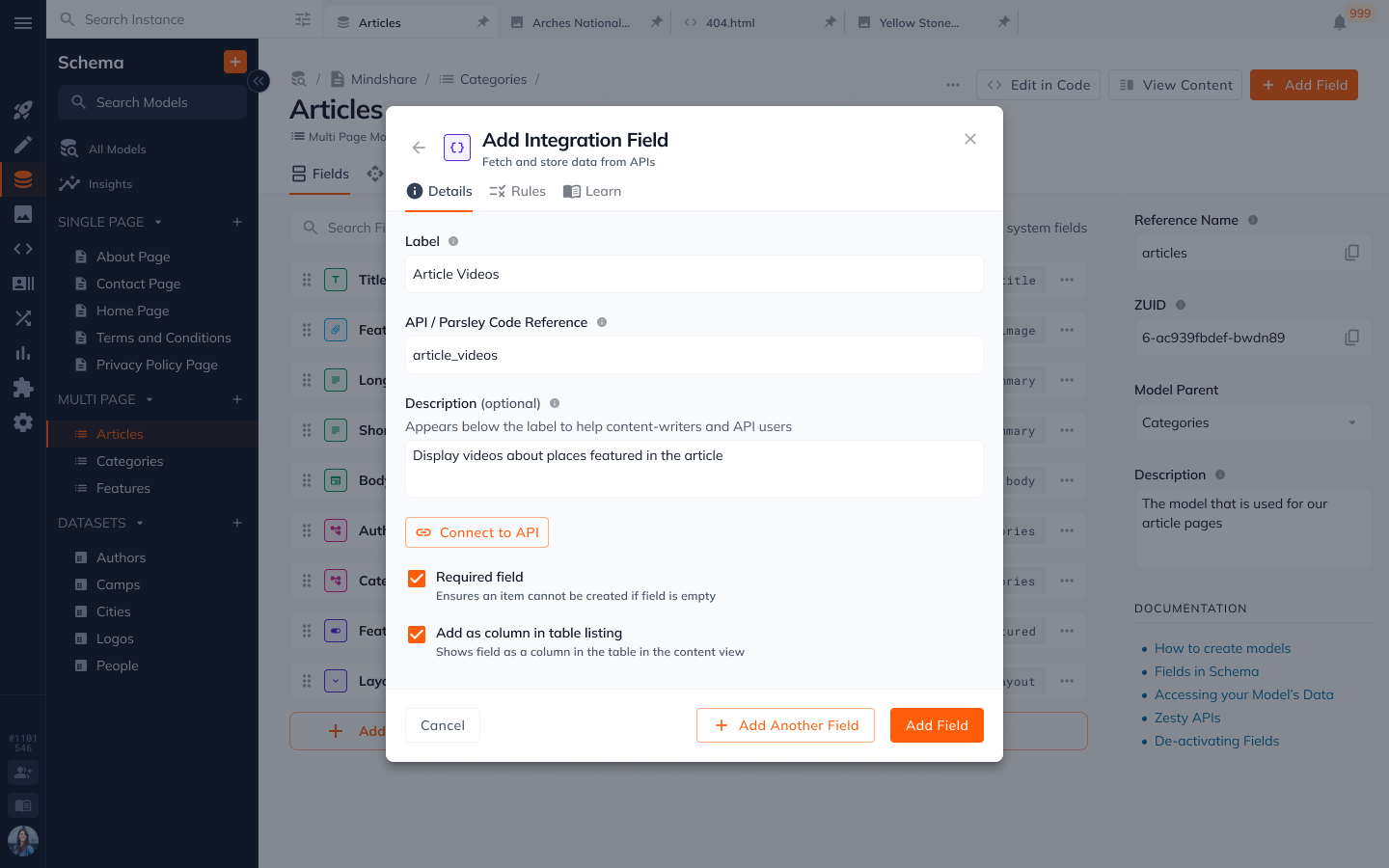
How to add connect to an external JSON API
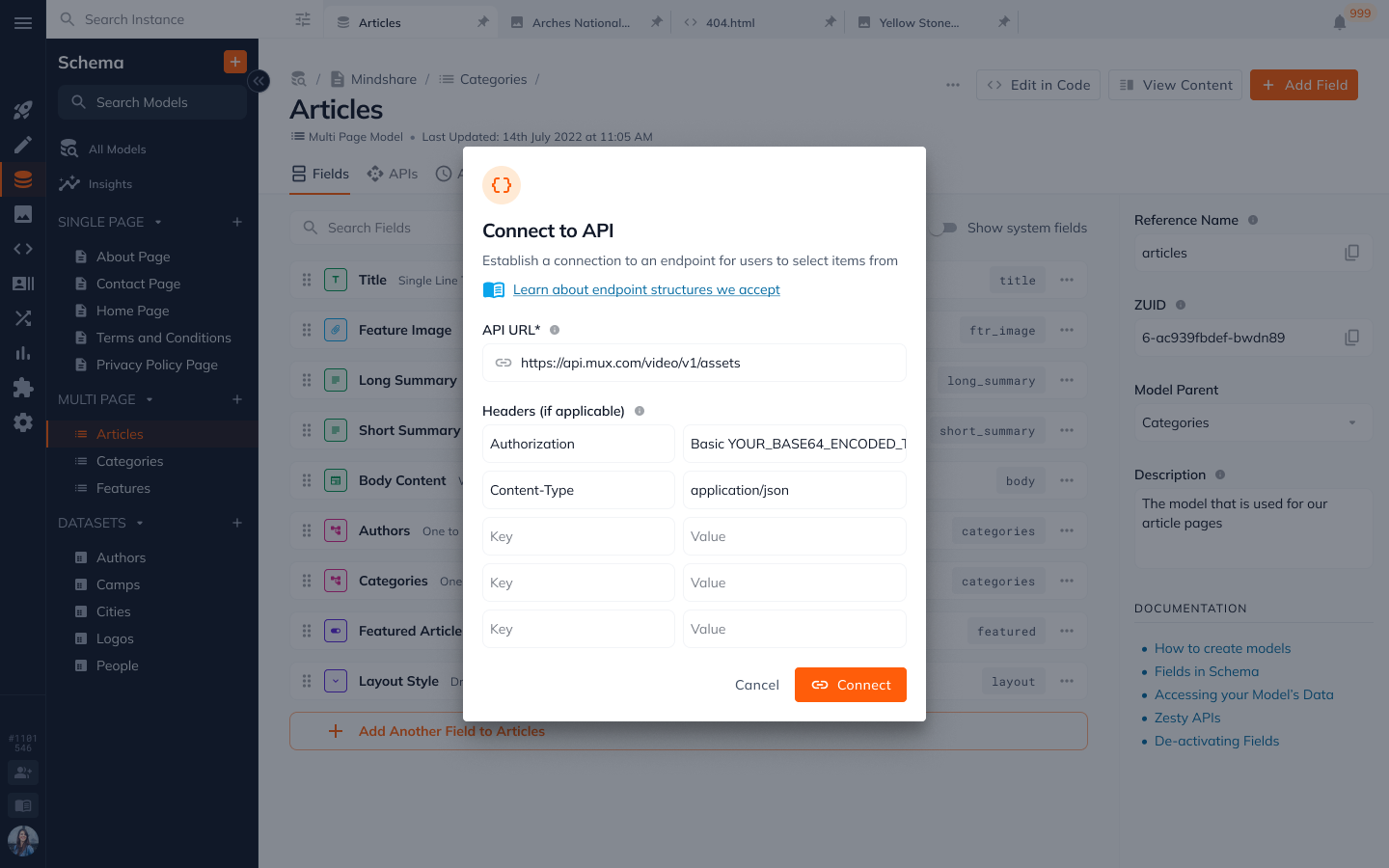
Remote JSON Endpoint
The integration field supports a JSON array of objects with a consistent shape. Enter the API URL for your JSON array, along with authentication headers (optional).
Authentication Headers (optional)
If your API requires authentication, you can add headers as key-value pairs. Integration fields support:
- Bearer token - Authorization: Bearer <token>
- Basic Auth - Authorization: Basic <base64>
- API Key - api-key: <your-key>
Note: Authorization headers are stored securely, and are never exposed to content editors in the Content App. Only schema administrators configuring the integration field, will have access to these values.
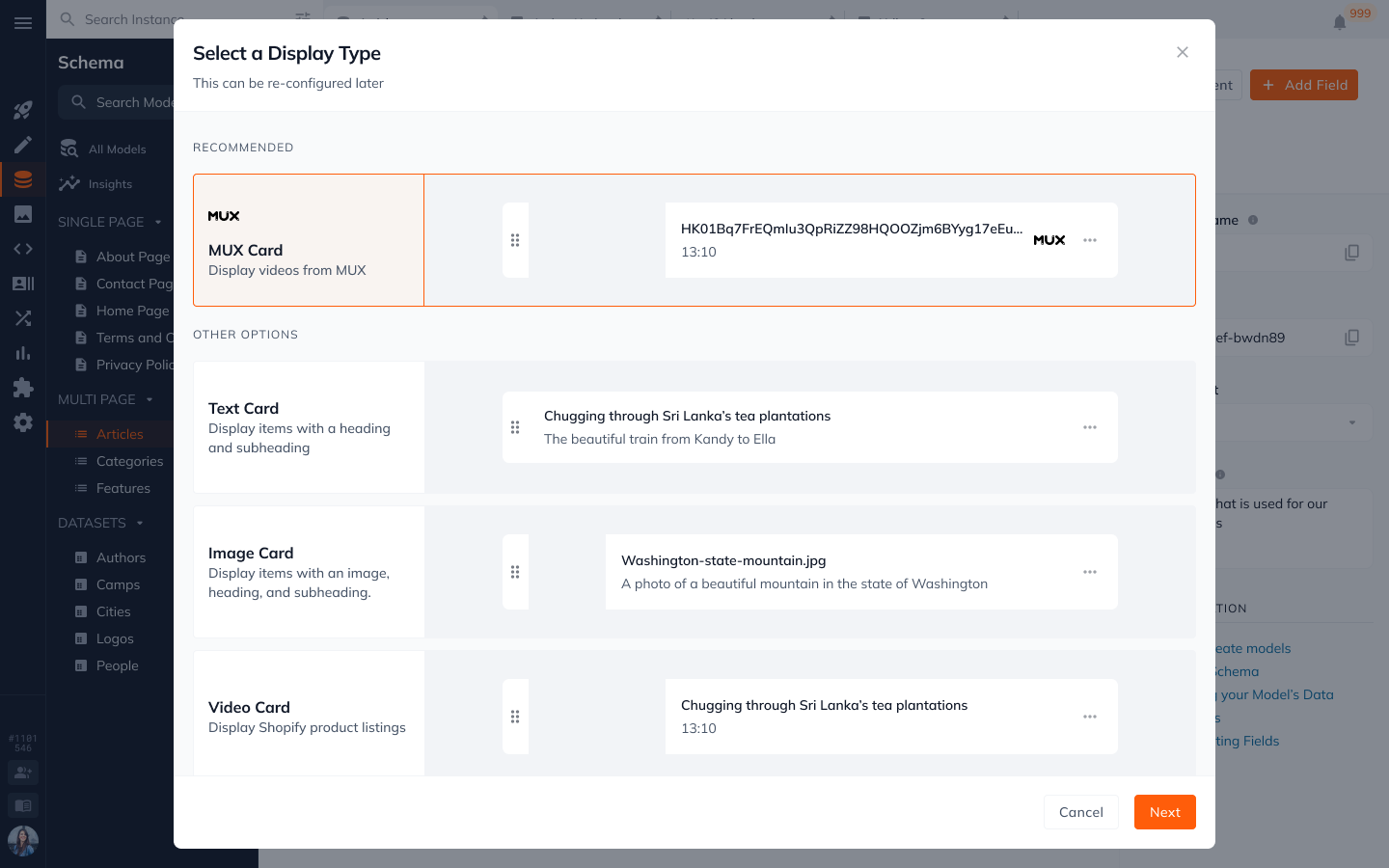
Selecting how integration field items are shown in the Content App
The integration field supports a library of display types for retrieved items in the Content App. Select the display type that matches your data best.
Generic Display Types
Available for any JSON endpoint:
- Simple Card - A minimal card showing the display label only
- Text Card - A card with a heading and a subheading
- Detail Card - A card with multiple details
- Image Card - A card with an image thumbnail with the display label
- Video card - A card formatted for video previews
Configuring integration field display card value
Choose which values to show content editors when editing integration field items. Your card will provide fields you can map JSON response keys to. When selecting the dropdown, you will see preview values from the first item in the API response. The preview will update with the values you select.
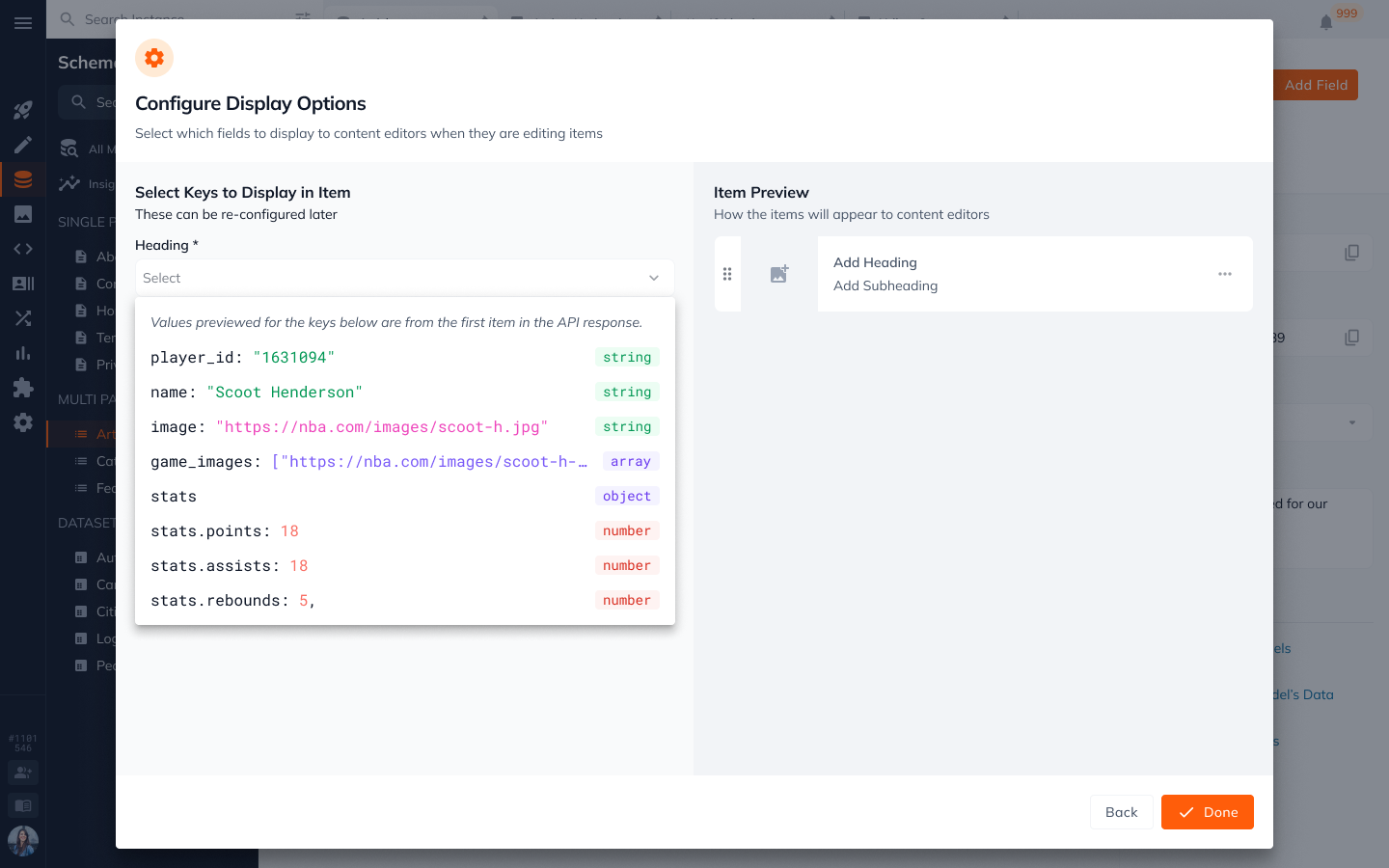
Adding integration field items in the Content App
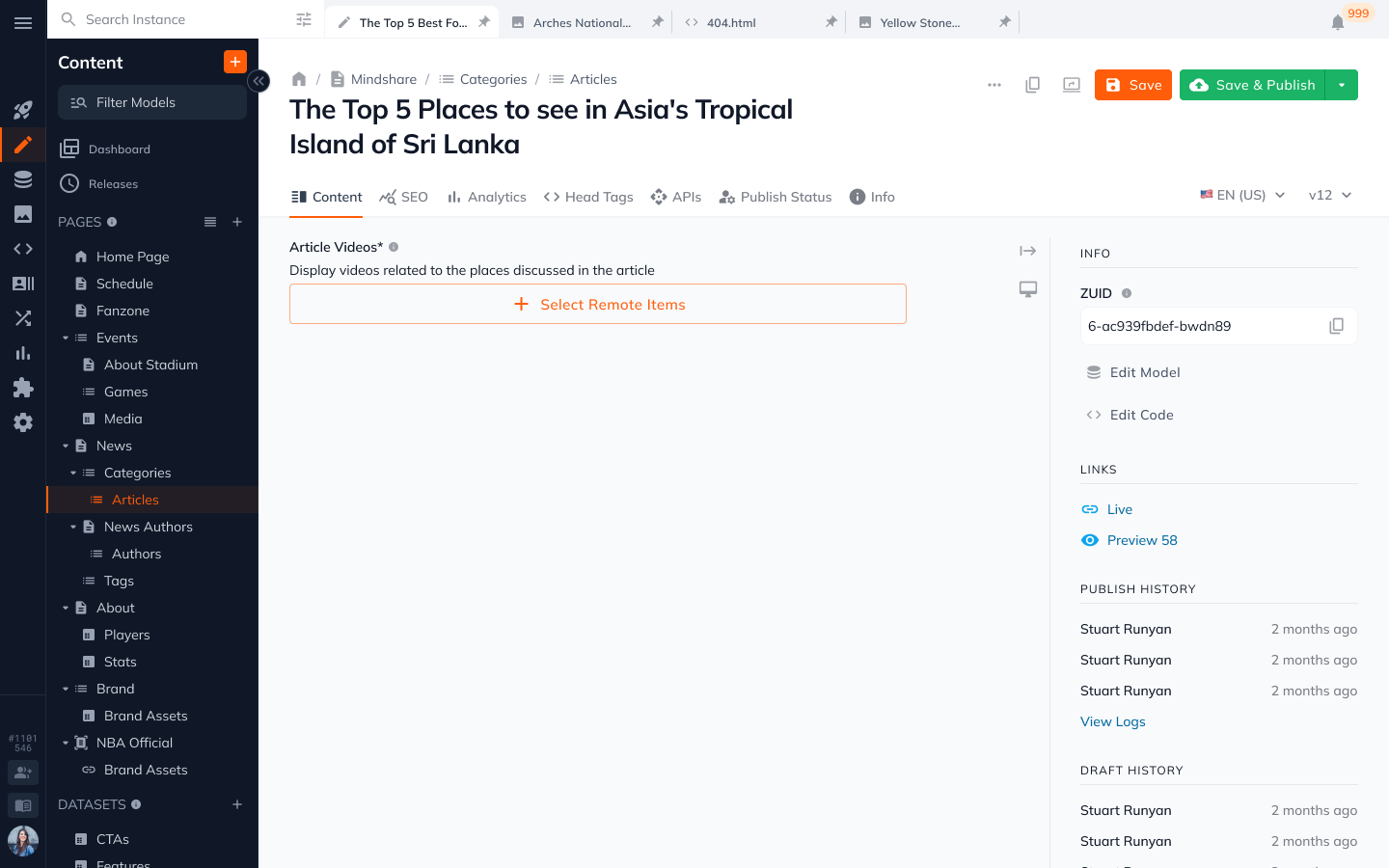
When you view an integration field in the content app, you’ll be asked to add select remote items. Clicking the button will present you with a UI to add items to your content item.
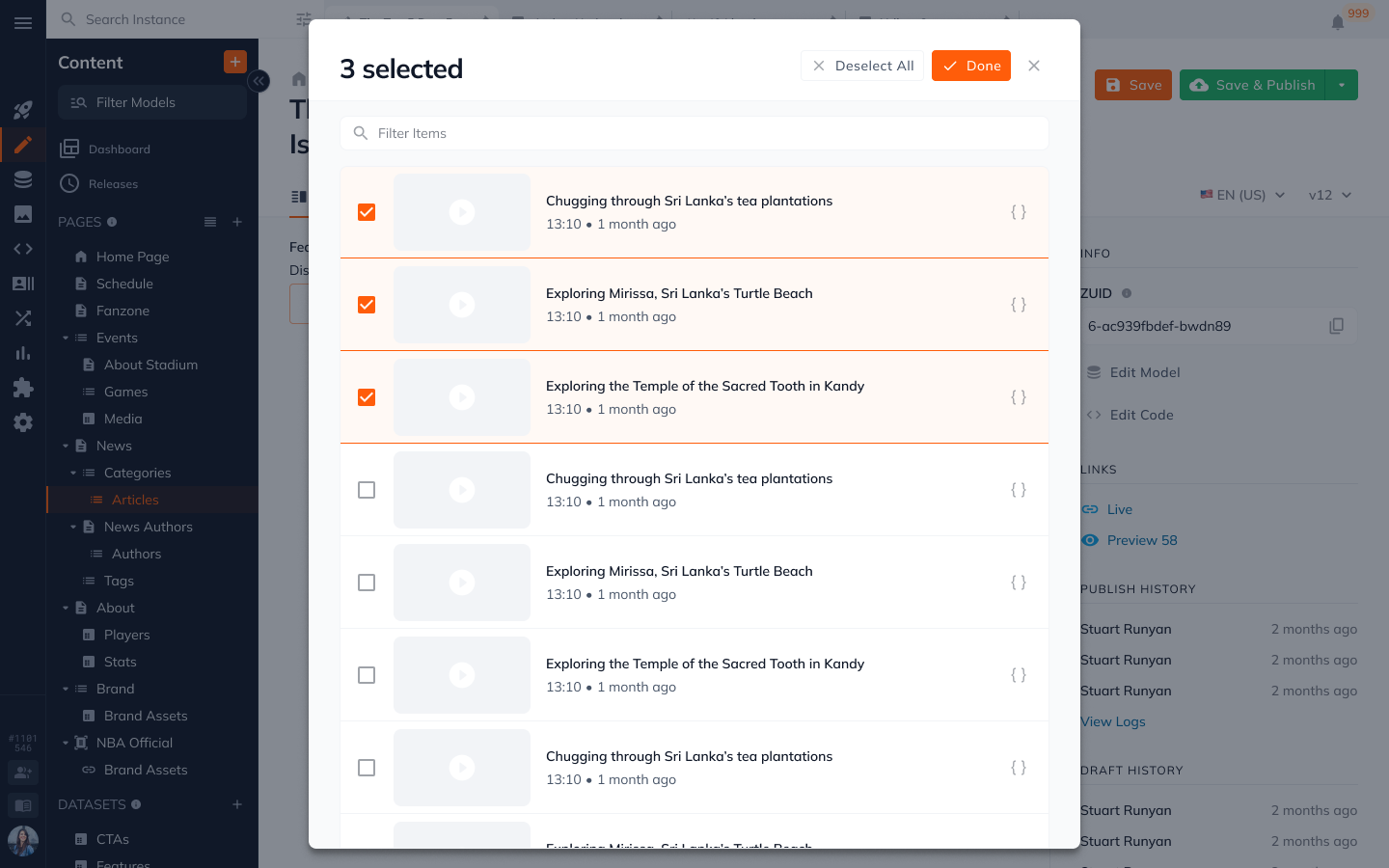
Adding select items will offer you a list from your API response, using the display type selected in the schema app. You can choose which items to add to your content item, by checking them and pressing done.
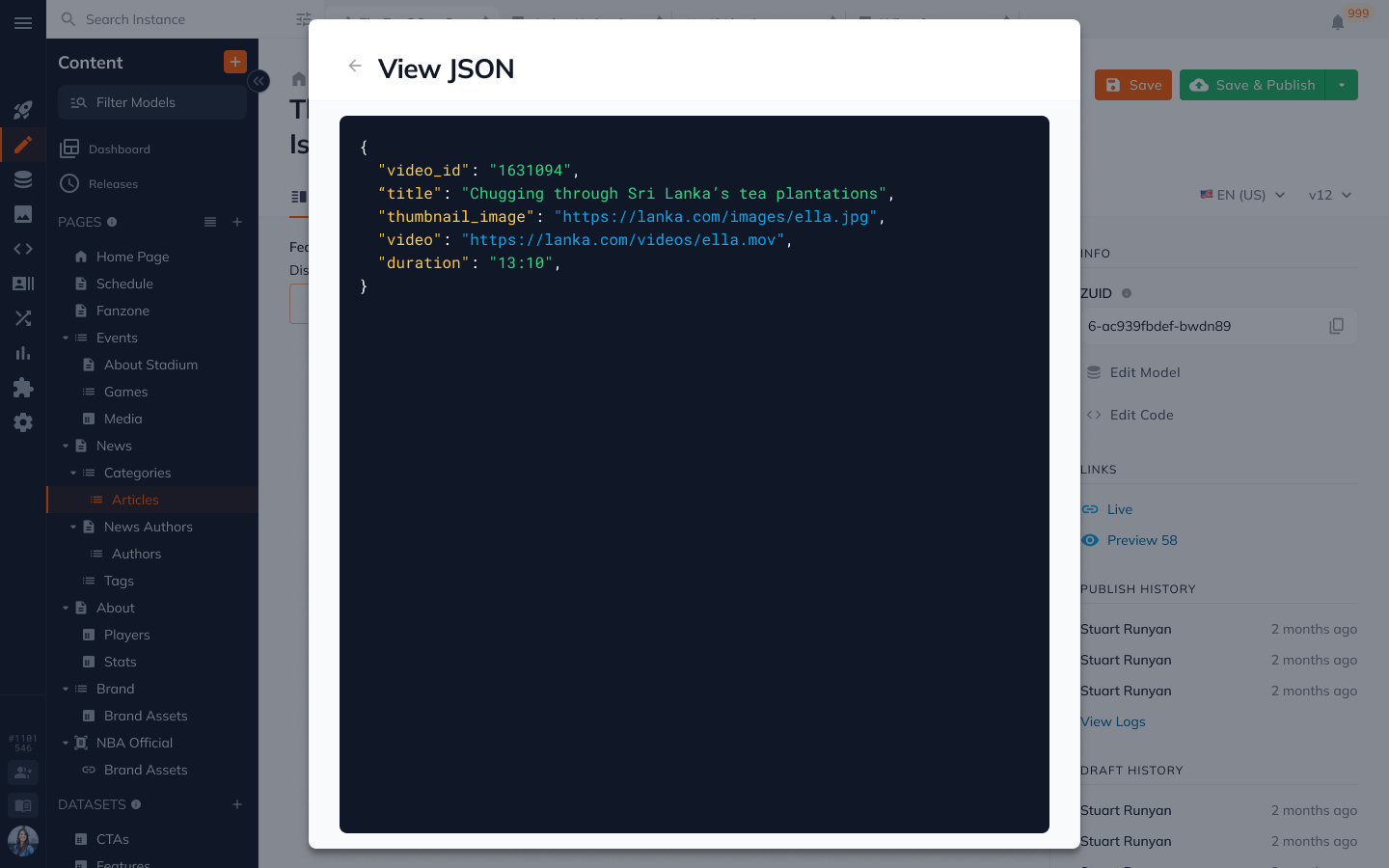
Note: The curly brackets to the right of the display card lets you view the JSON for that value.
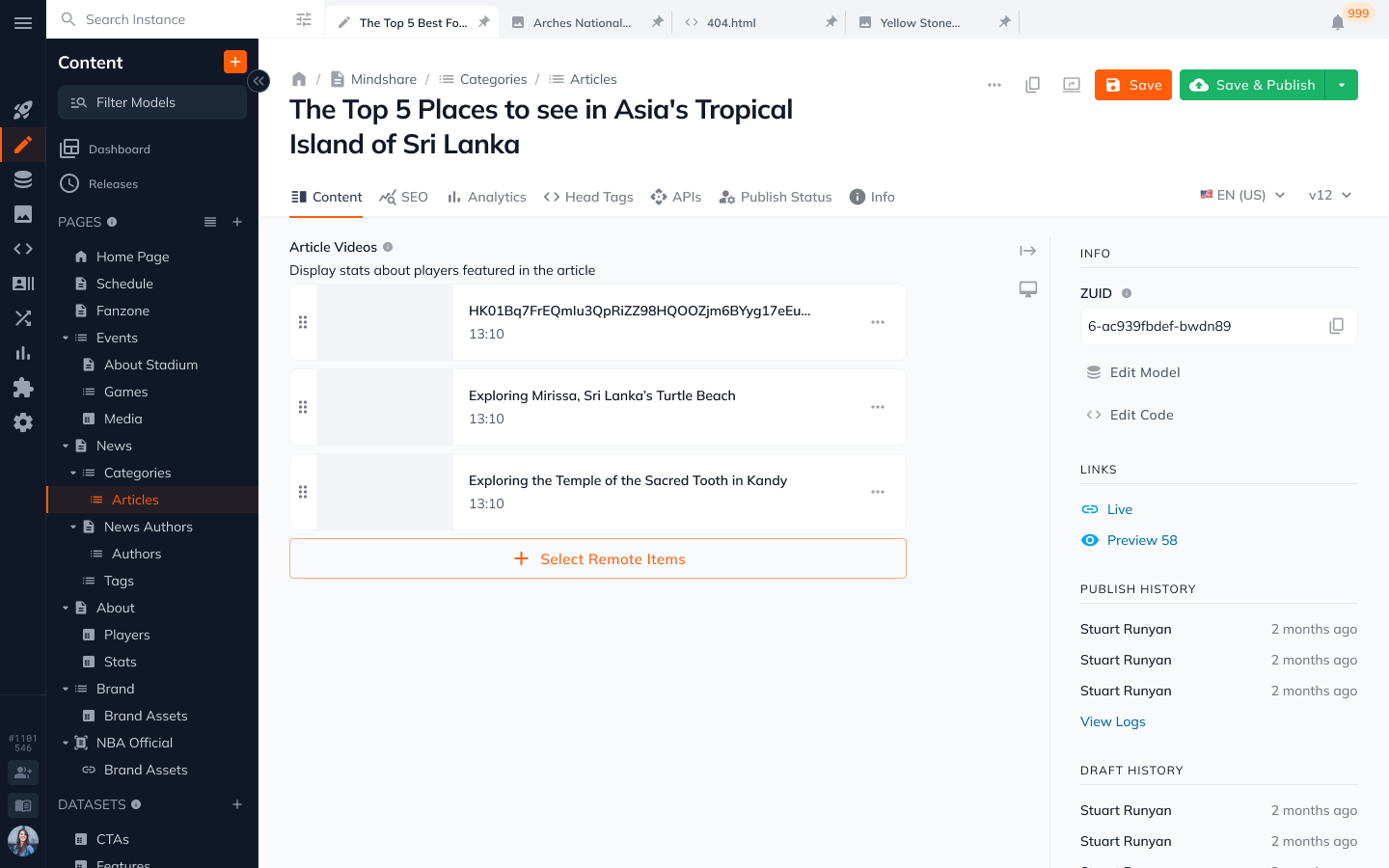
Once you add items to your content item you will see them on your content item. Shown in the same display card from the previous screen, from your schema display type selection.
Iterating content from an Integration Field using Parsley
When your integration field returns an array of objects (such as a list of users, products, or posts), you loop through them using Parsley's each loop. See the below example code for iterating content from your external JSON API object.
Check out more parsley json reference in our documentationhere.
Updated 4 months ago